
Testorium User Guide
Summary:
This guide explains how to use the Testorium platform, including how to find and take tests, navigate the testing process, and review your results.
1. Getting Started
Open your browser and go to www.testorium.net.
On the main page, you will see a list of available tests organized by subject.
You can:
- Browse tests by category
- Use the search bar to find a test by test name or author
Each test listing shows useful information such as its duration and number of test cases.
2. Sign In or Register
Click Sign in to access your account. If you do not have an account, select Sign up / Register and follow the registration steps.
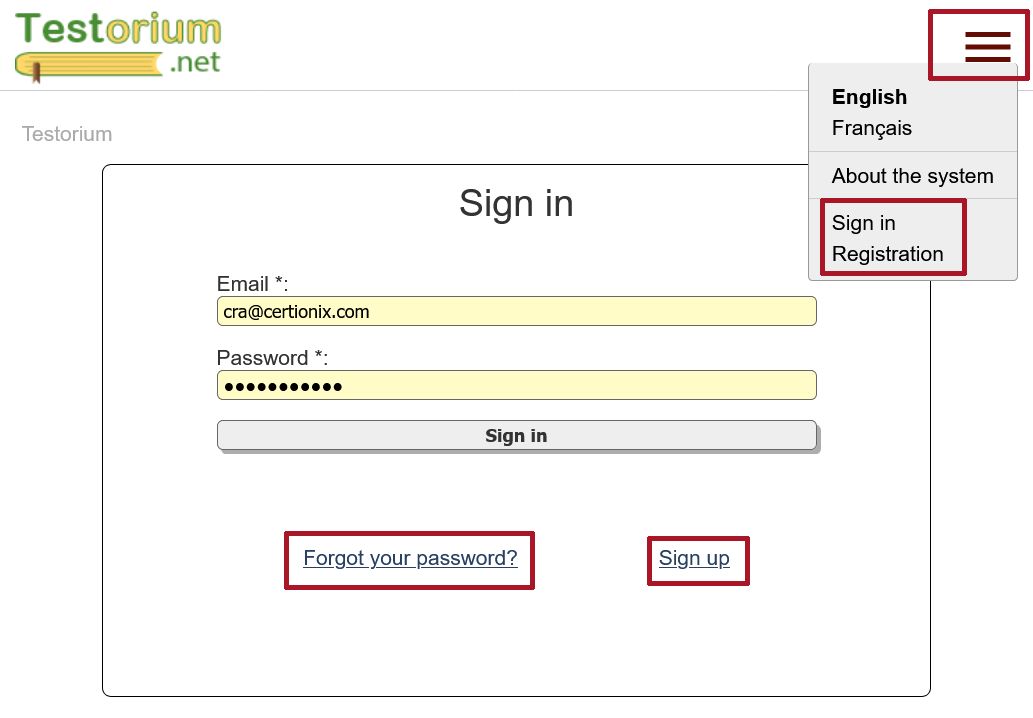
You can also take some tests without logging in, depending on the test settings. However, signing in can give you access to additional tests and features as well as allows your results to be associated with your account.
3. Selecting a Test
Find a test you want to take and open it.
Before starting, carefully review the test details:
- Purpose of the test and description
- Number of questions
- Time limit (if any)
- Special instructions (if provided)
- Auxiliary materials (if any)
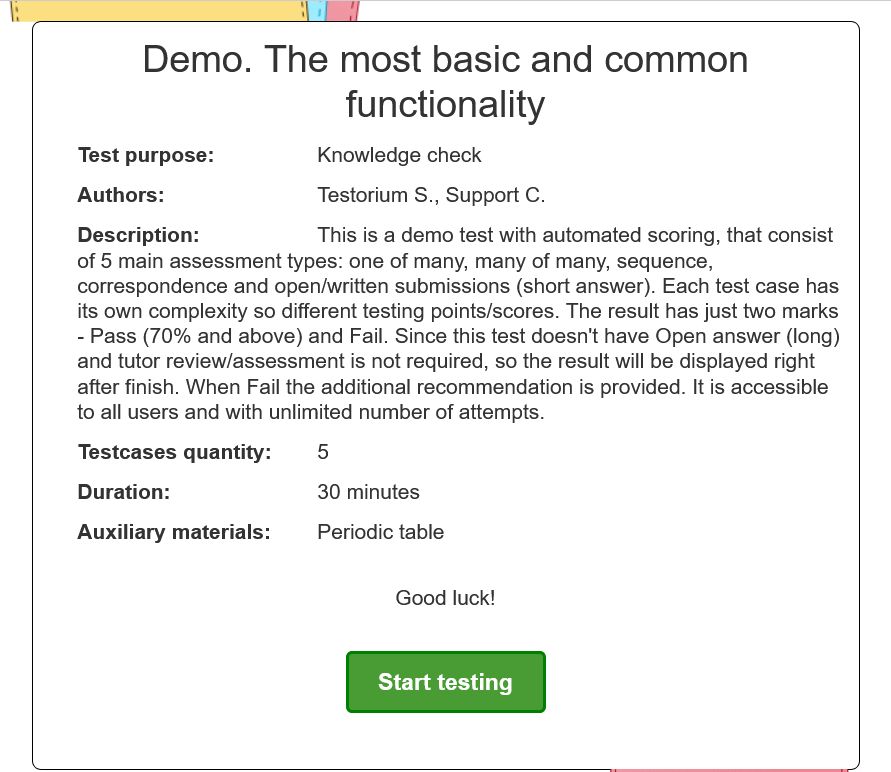
The available information can vary from one test to another.
When you are ready, click Start Testing.
4. Taking the Test
After start testing, work through the test cases and answer each question one by one as instructed.
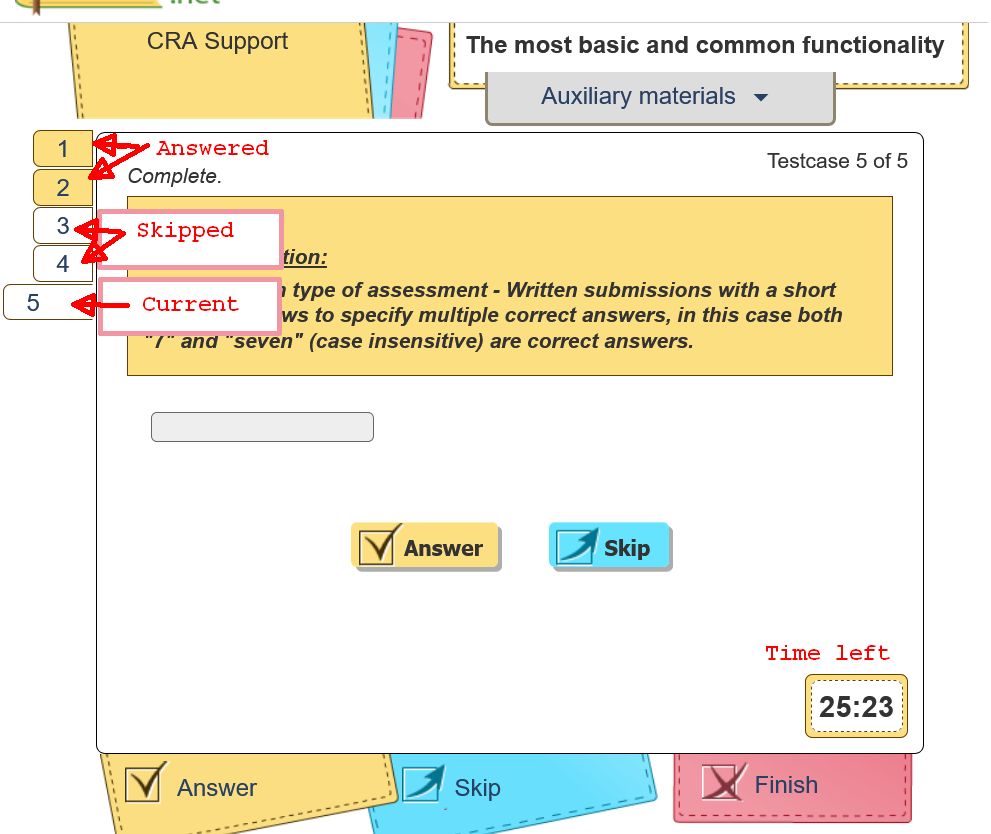
Keep in mind:
- Read each question carefully before answering
- Some tests may be timed, so watch the clock. Even if times out, all already provided answers are saved
- Question types may vary (single choice, multiple choice, text input, etc.)
- On the navigation panel you can see the number of answered and left questions
- While testing you can skip questions and navigate back and forth
- The exact testing experience depends on how the test was configured
After completing all questions, submit your test.
5. Viewing Results
After submission, review your results if they are available.
Depending on the test type and settings, you may:
- See your score immediately
- Receive correct answers and explanations (Training Test)
- Get delayed results (for some assessments). Such results become visible on the users profile page after assessment is finished
- Some tests may be re-taken
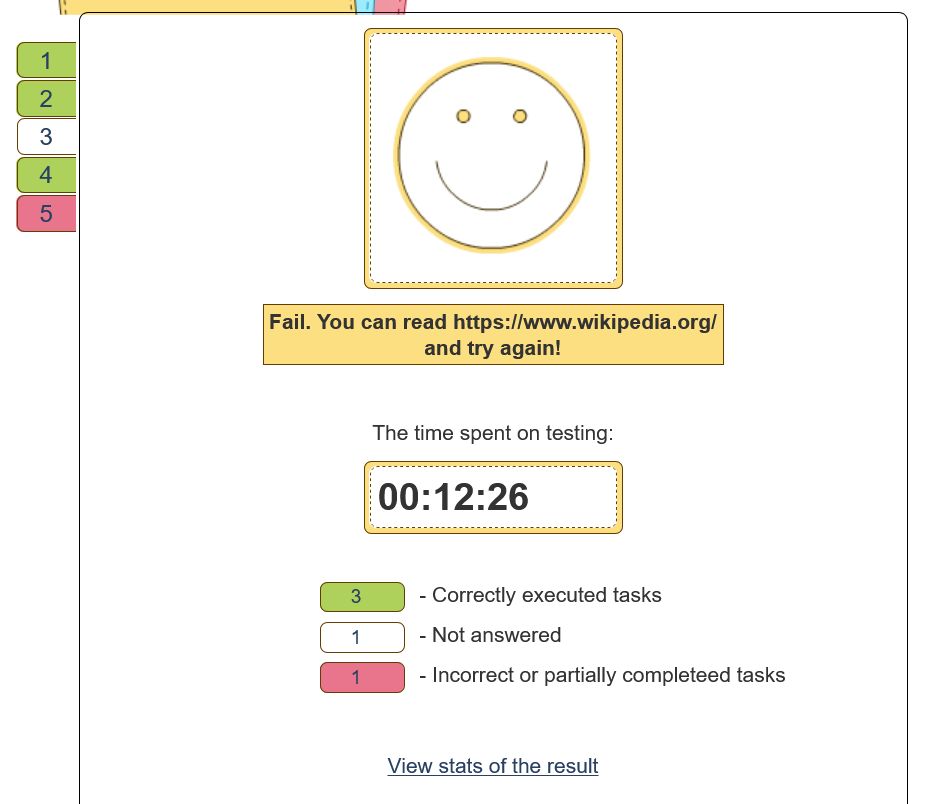
Use your results to:
- Identify weak topics
- Learn from mistakes
- Improve your knowledge for future tests
Quick Tips
Before the test:
Check instructions, test purpose, number of questions, duration, and any available materials.
During the test:
Stay focused, read each question carefully and manage your time
After the test:
Review your results and use incorrect answers to identify topics that need more study.
Remember:
Test availability, number or tries, time limits, attempts, and feedback can vary because each test can be configured differently.
